QoL with WoL: Turning on the Homelab from Anywhere in the World
QoL with WoL: Turning on the Homelab from Anywhere in the World
I just hardwired my homelab PC and wanted a quality of life upgrade: my wife and I should be able to wake it remotely from anywhere — using Google Home, because that's what we already use. Simple goal. Turned out to be a longer road than I expected, mostly because the internet is full of outdated instructions, expired invite links, and tutorials that assume you have the right NIC name.
Here's the full journey, stumbles included.
The Goal
Wake a Linux homelab PC from fully powered off, from anywhere in the world, using Google Home voice commands. No subscriptions. No new hardware.
Constraint: No Nabu Casa ($7/mo Home Assistant cloud relay), no IFTTT, no Raspberry Pi.
How It Actually Works
Google Home can't send a Wake on LAN magic packet directly. WoL requires a device on the same local network as the target machine to broadcast the packet. So the architecture is:
Google Home voice command
  → SmartThings
    → SmartThings Hub V2 (always on, always on LAN)
      → Magic packet broadcast
        → Homelab PC wakes up
The SmartThings hub is the relay — it's plugged in 24/7, sits on your LAN, and can broadcast the magic packet even when the PC is completely off. No cloud service needed beyond SmartThings itself, which you likely already have.
Step 1: Enable Wake on LAN on the Linux Machine
Find your actual NIC name
The first stumble: running sudo ethtool eth0 and getting a wall of errors.
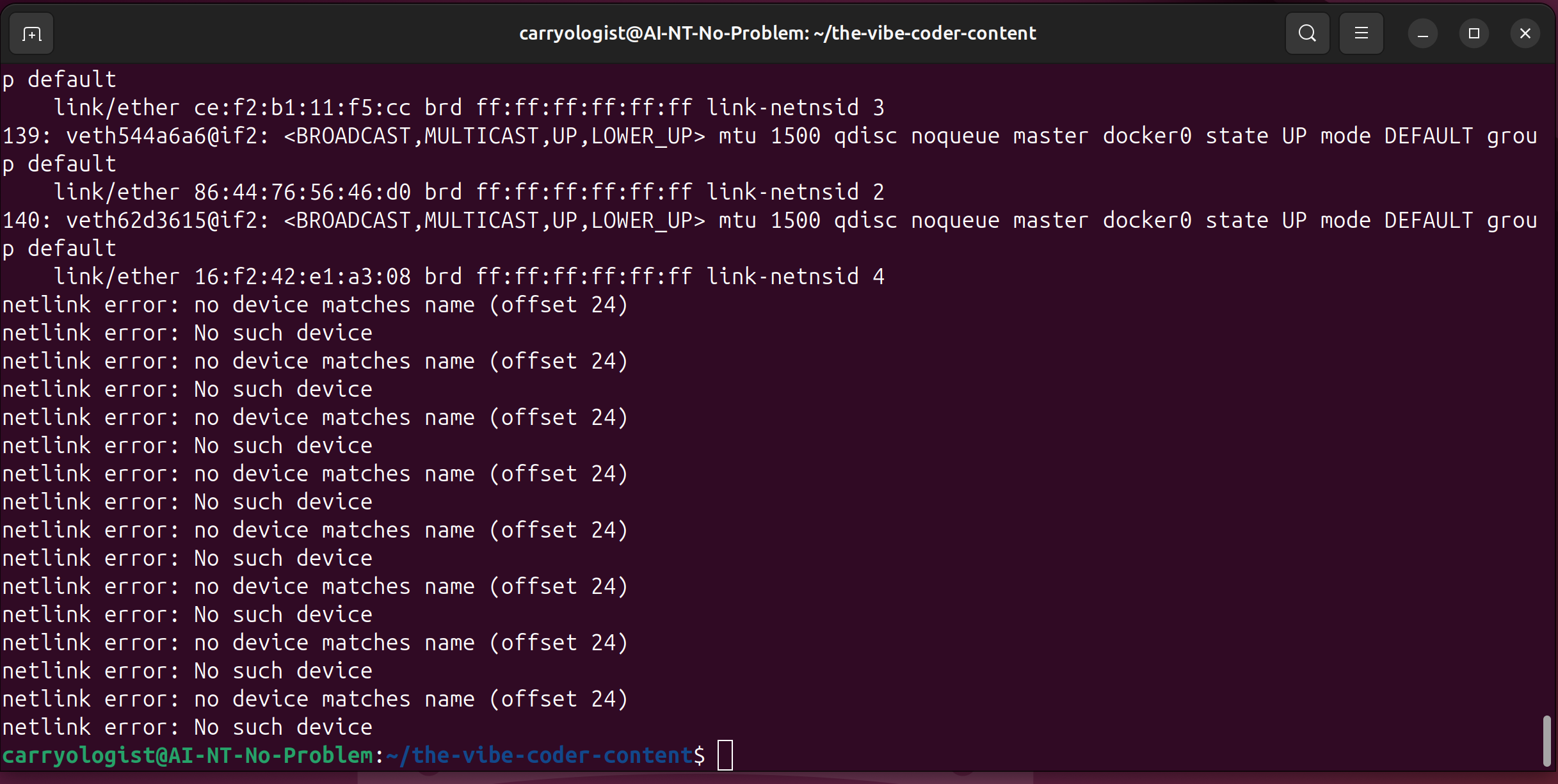
Modern Linux doesn't use eth0 anymore. Network interfaces use predictable names like enp8s0. Find yours:
ip link show | grep -E "^[0-9]+:" | grep -v "lo\|docker\|veth\|br-"Look for an interface starting with en that shows state UP — that's your hardwired NIC. In my case: enp8s0.
Check and enable WoL
sudo ethtool enp8s0 | grep -i wakeYou want to see Supports Wake-on: pumbg — the g means magic packet is supported. If Wake-on: d, it's disabled.
Enable it:
sudo ethtool -s enp8s0 wol gVerify it stuck:
sudo ethtool enp8s0 | grep -i wake
# Wake-on: g  ← good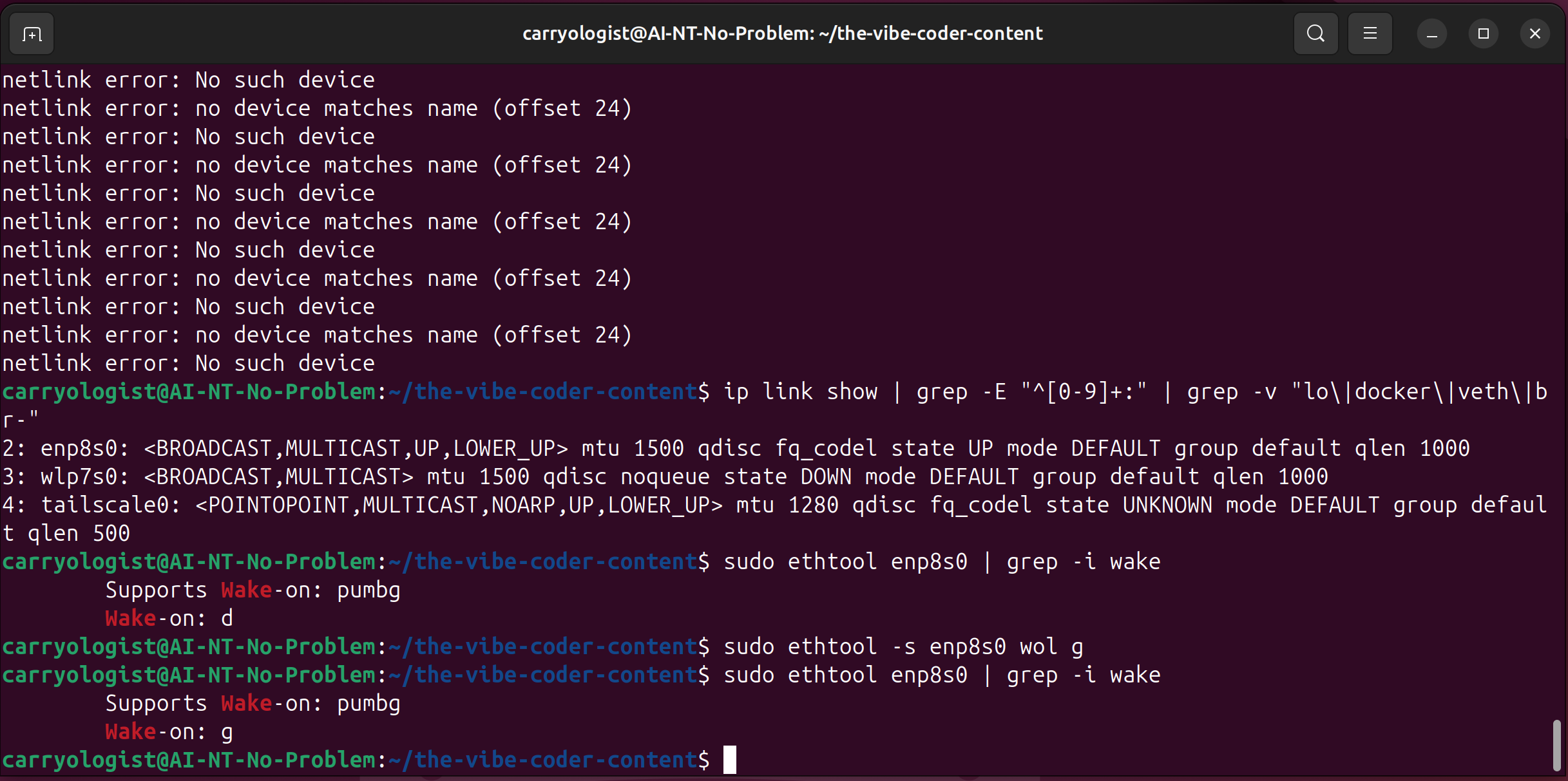
Make it persist across reboots
The setting resets on reboot without a systemd service. Create /etc/systemd/system/wol-enable.service:
[Unit]
Description=Enable Wake on LAN
After=network.target

[Service]
Type=oneshot
ExecStart=/sbin/ethtool -s enp8s0 wol g
RemainAfterExit=yes

[Install]
WantedBy=multi-user.targetsudo systemctl enable wol-enable.service
sudo systemctl start wol-enable.serviceNote your MAC address
You'll need this later:
ip link show enp8s0 | grep link/etherCheck your BIOS
This is the step people skip and then wonder why nothing works. Reboot into BIOS/UEFI and look for:
- Wake on LAN → Enabled
- Power On By PCI-E → Enabled
- ErP / EuP → Disabled (this cuts power to the NIC when off, killing WoL)
Location varies by motherboard — search your model name + "wake on lan bios" if you can't find it.
Step 2: Set Up Home Assistant (Turned Out to Be a Detour)
My original plan was Home Assistant → Nabu Casa → Google Home. I got HA running in Docker:
docker run -d \
  --name homeassistant \
  --network host \
  --restart unless-stopped \
  -v ~/homeassistant-config:/config \
  -e TZ=America/Chicago \
  ghcr.io/home-assistant/home-assistant:stable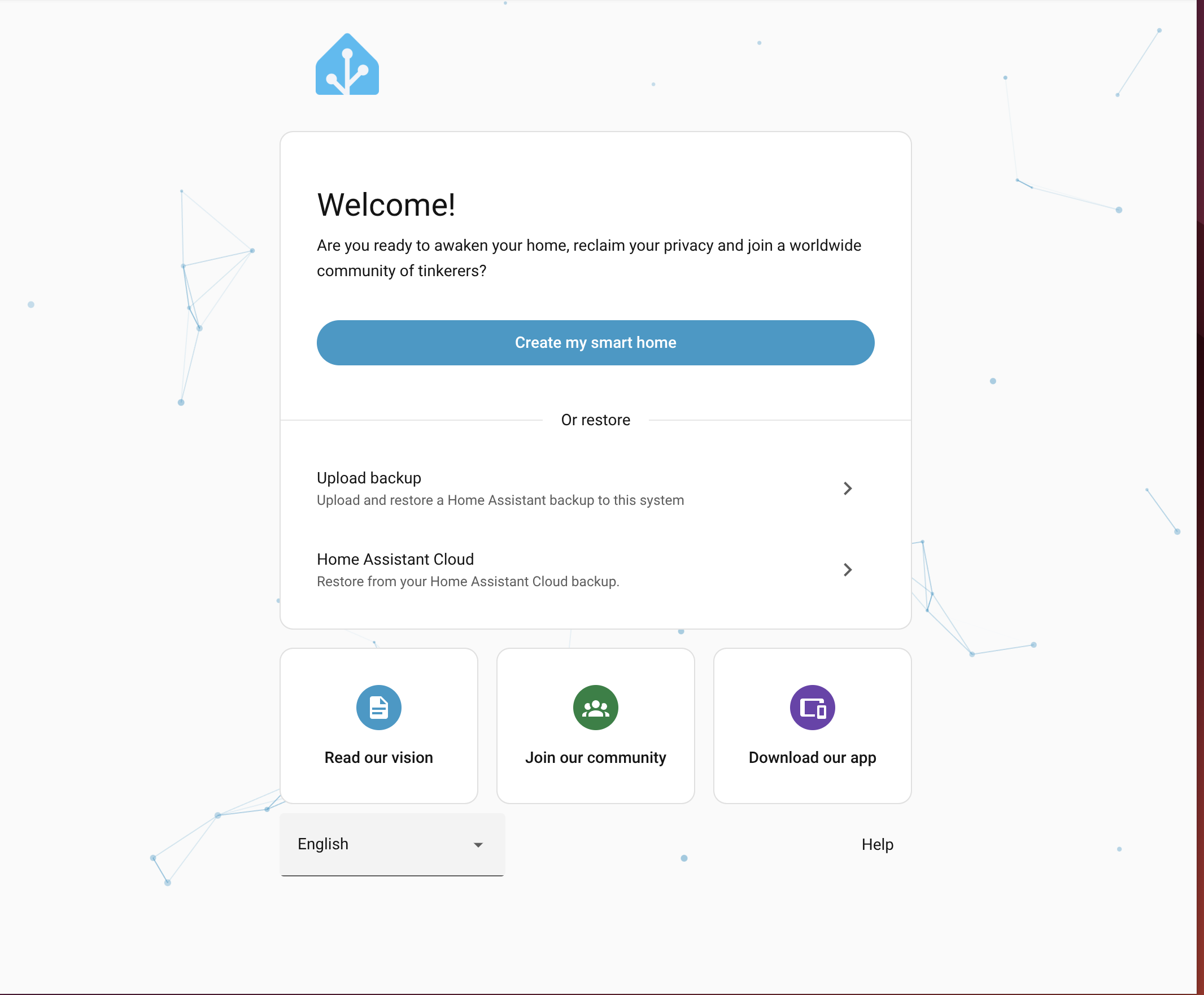
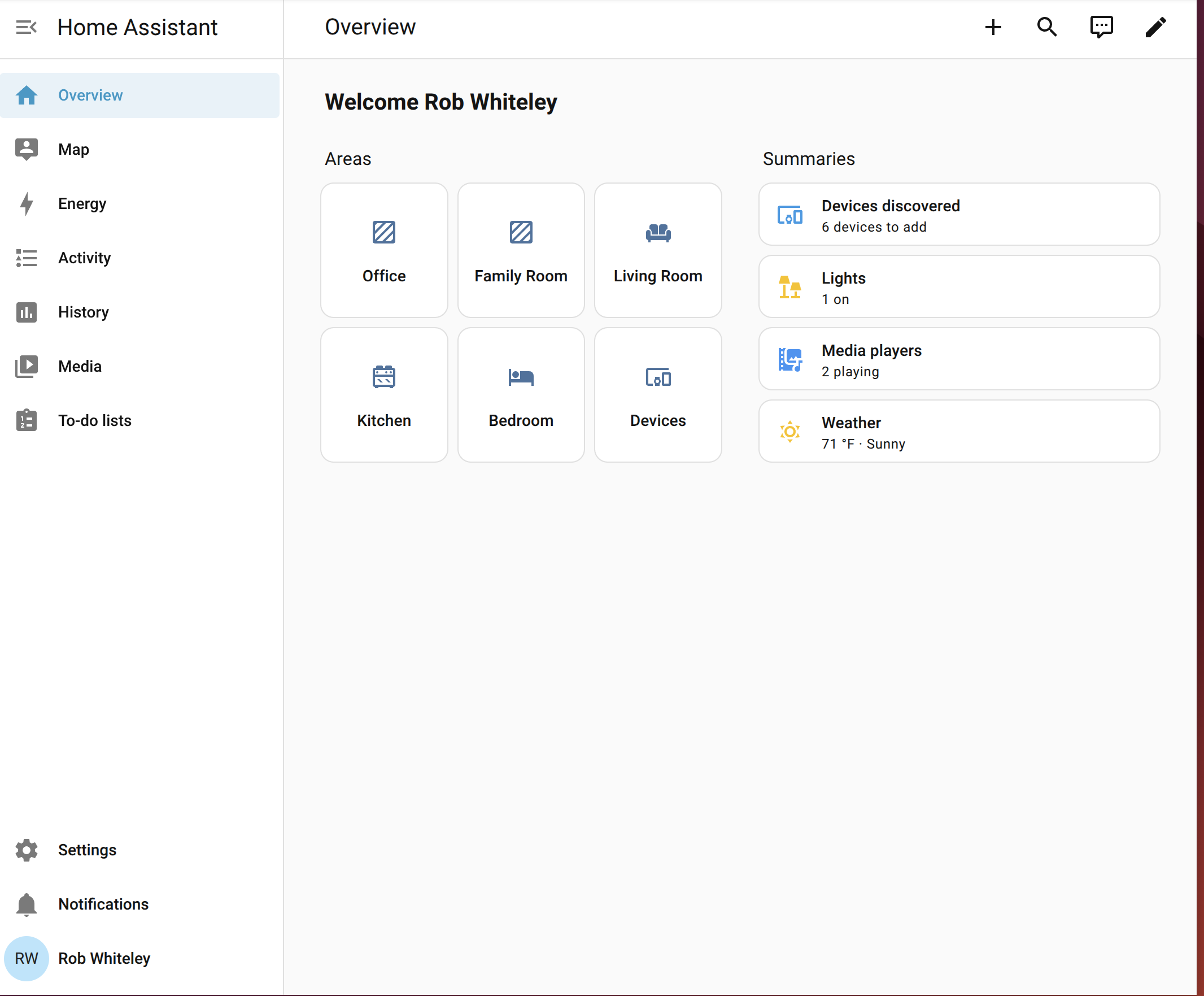
Onboarding was smooth. HA auto-discovered a bunch of devices on the network — Google Cast, Sonos, Android TV, Elgato lights, Matter, Thread, UPnP.
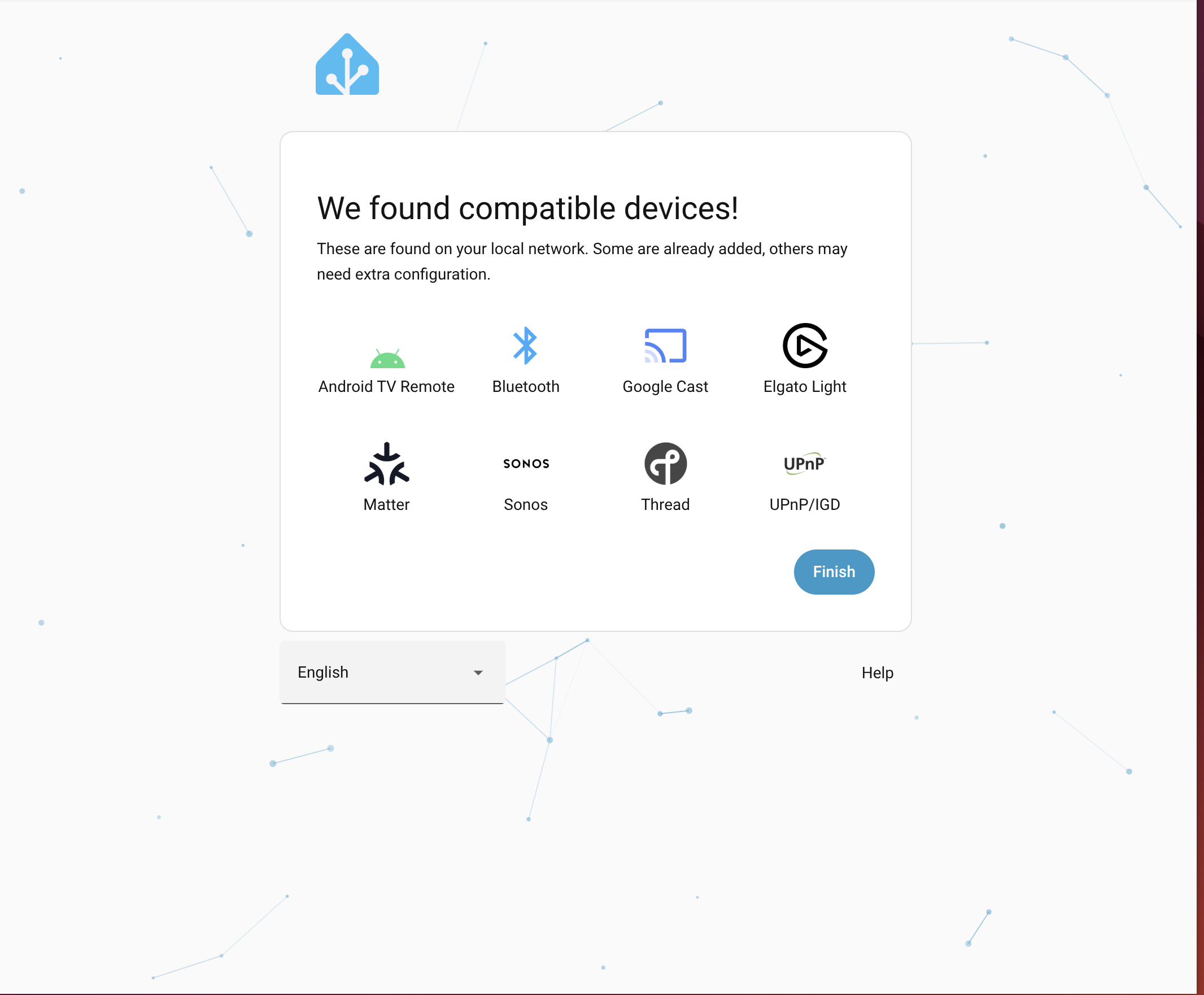
After setup, the dashboard came up clean:
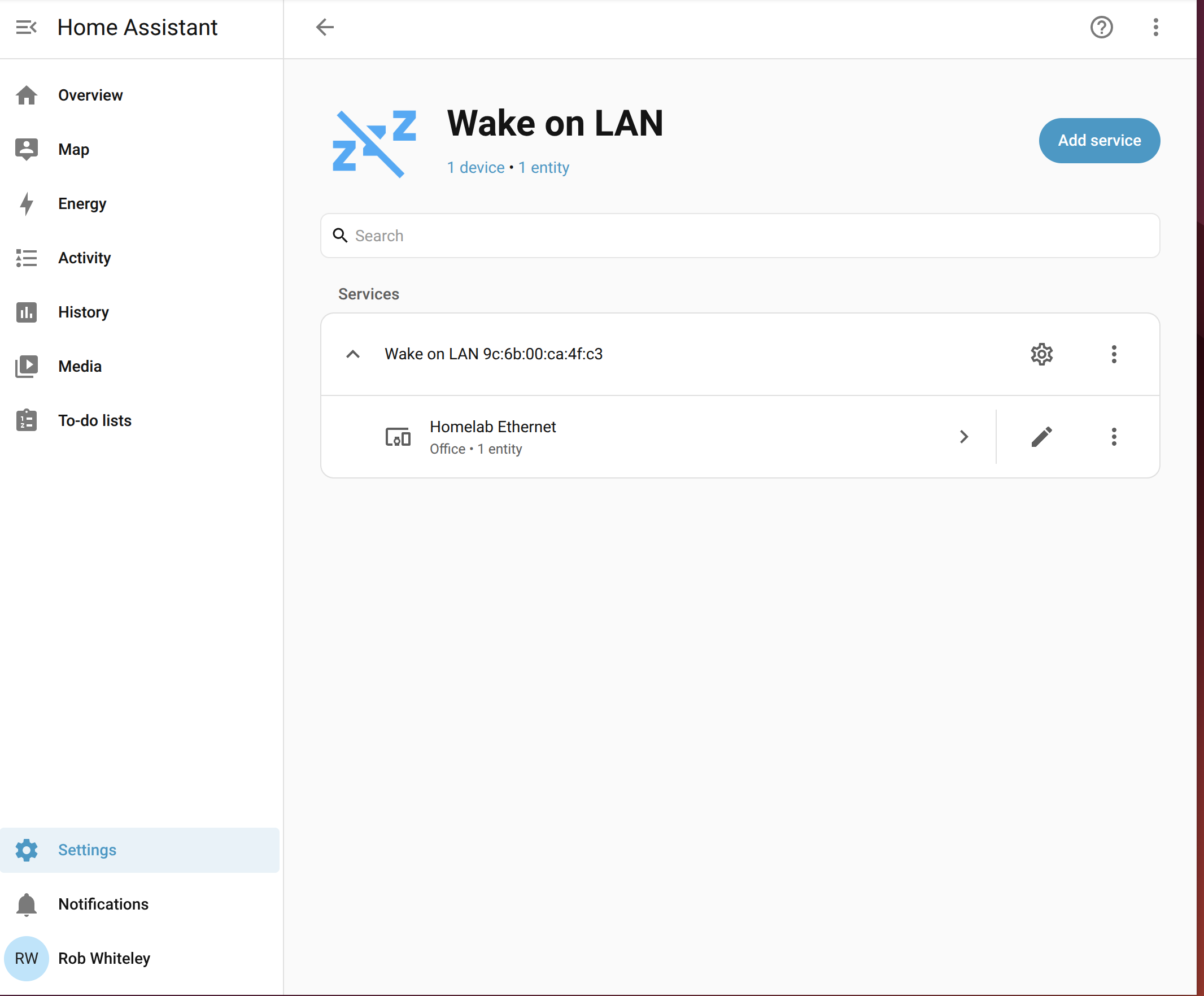
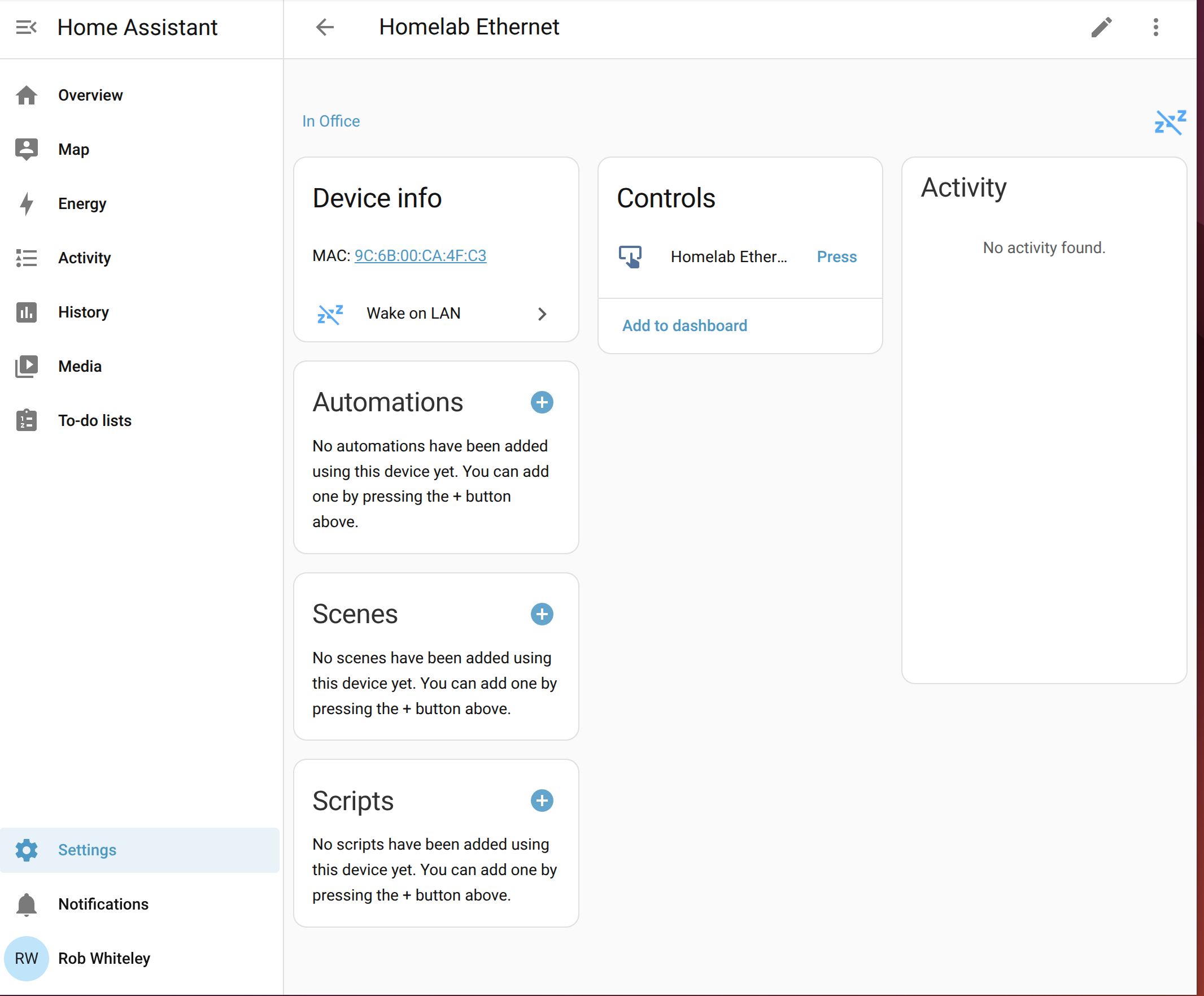
Added the Wake on LAN integration (Settings → Devices & Services → Add Integration → Wake on LAN), and HA immediately auto-created a device from the MAC address — "Homelab Ethernet" in the Office area.
The Nabu Casa problem
Then I hit the constraint: connecting HA to Google Home natively requires Nabu Casa ($7/mo) or a self-hosted OAuth2 Google Cloud project. I wanted no subscriptions.
The self-hosted path is doable but needs a publicly reachable URL for HA, which means a Cloudflare Tunnel, a domain, and about 30 minutes of Google Cloud Console work. I decided to explore whether my existing SmartThings hub could do the job instead.
Turned out: yes, much cleaner.
Step 3: SmartThings Hub as the WoL Relay
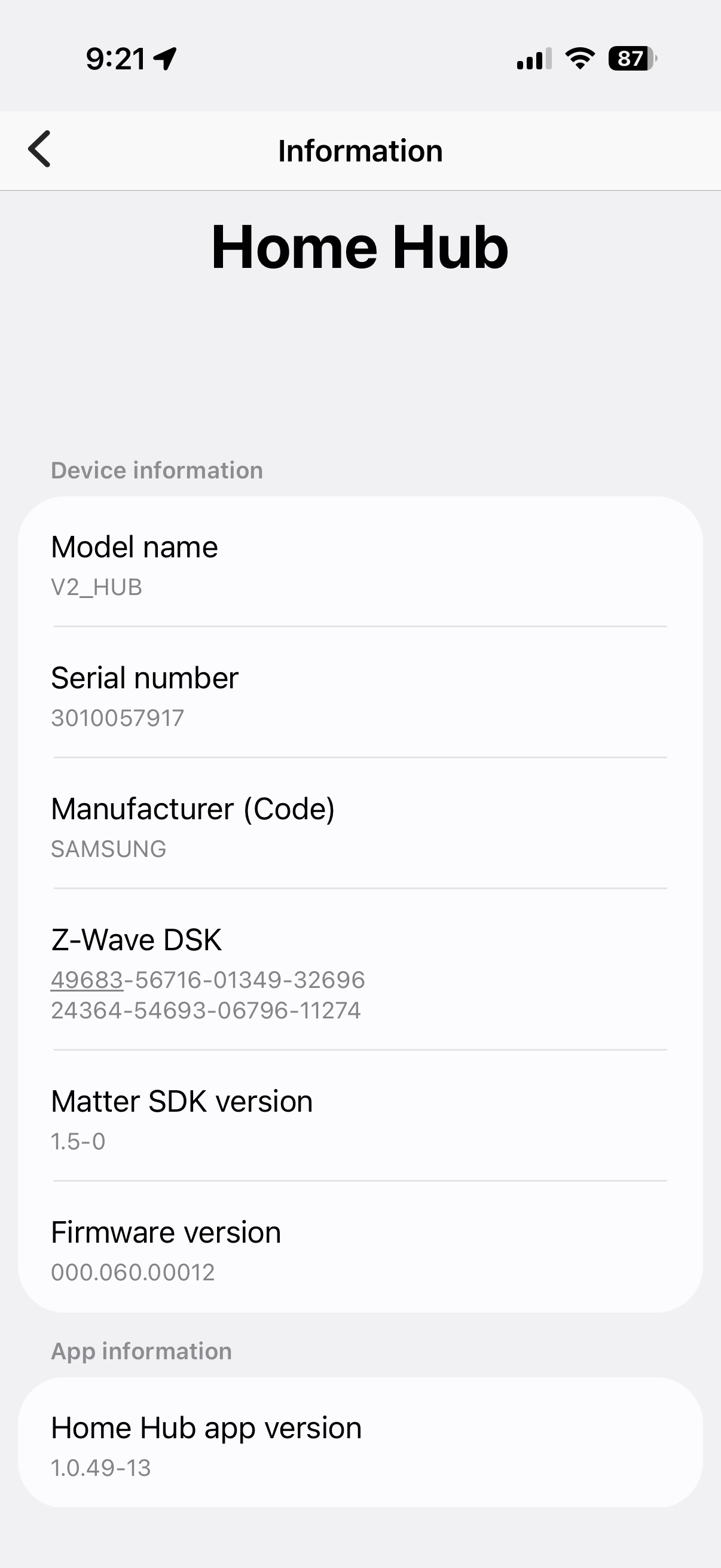
I have a SmartThings Hub V2 that's been sitting plugged in for years. It runs Edge drivers locally, is always on, and already syncs with Google Home.
Finding a working Edge driver (the hard part)
SmartThings Edge drivers are installed via channel invite links. The TAustin Wake on LAN driver is what most tutorials point to — but every link I tried was either expired or the community forum thread was gone.
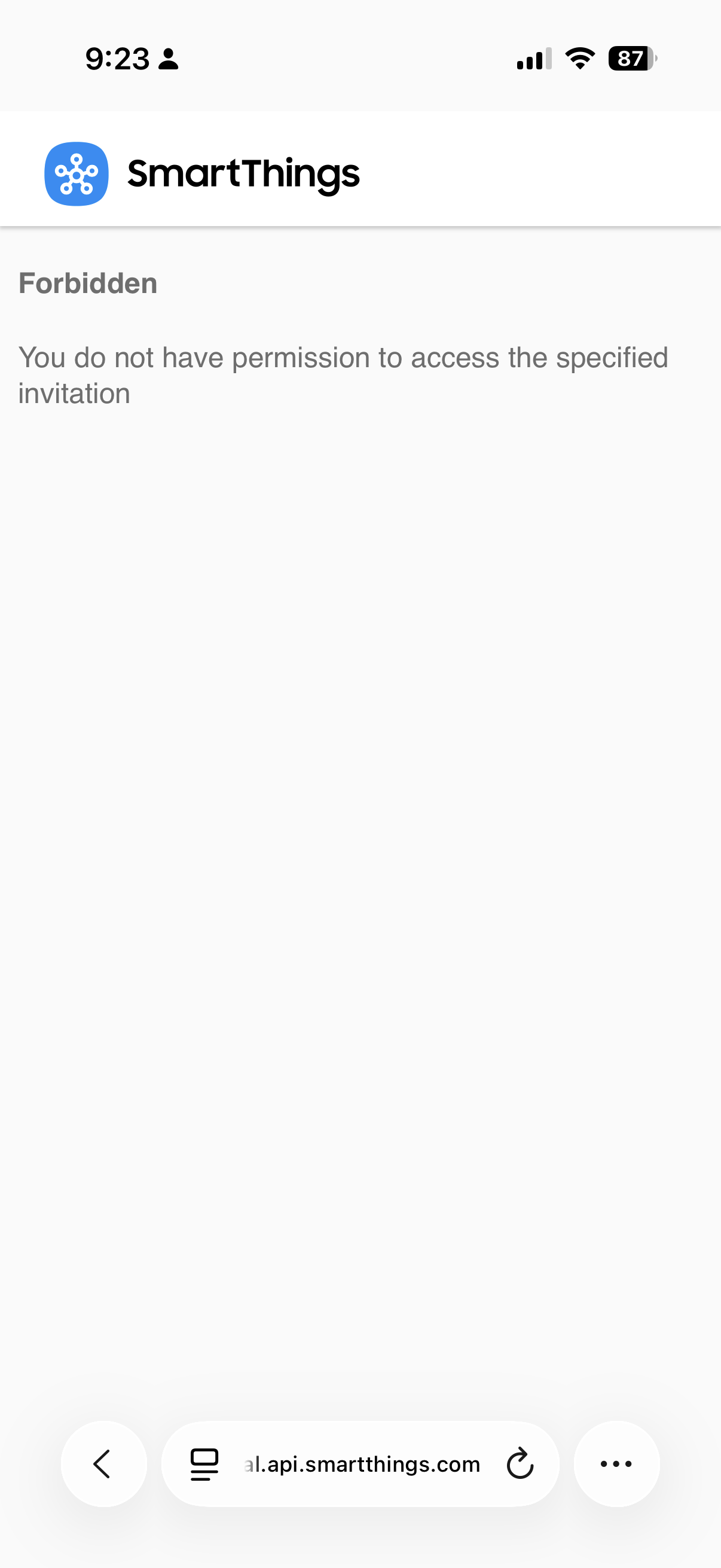
First attempt: Forbidden.
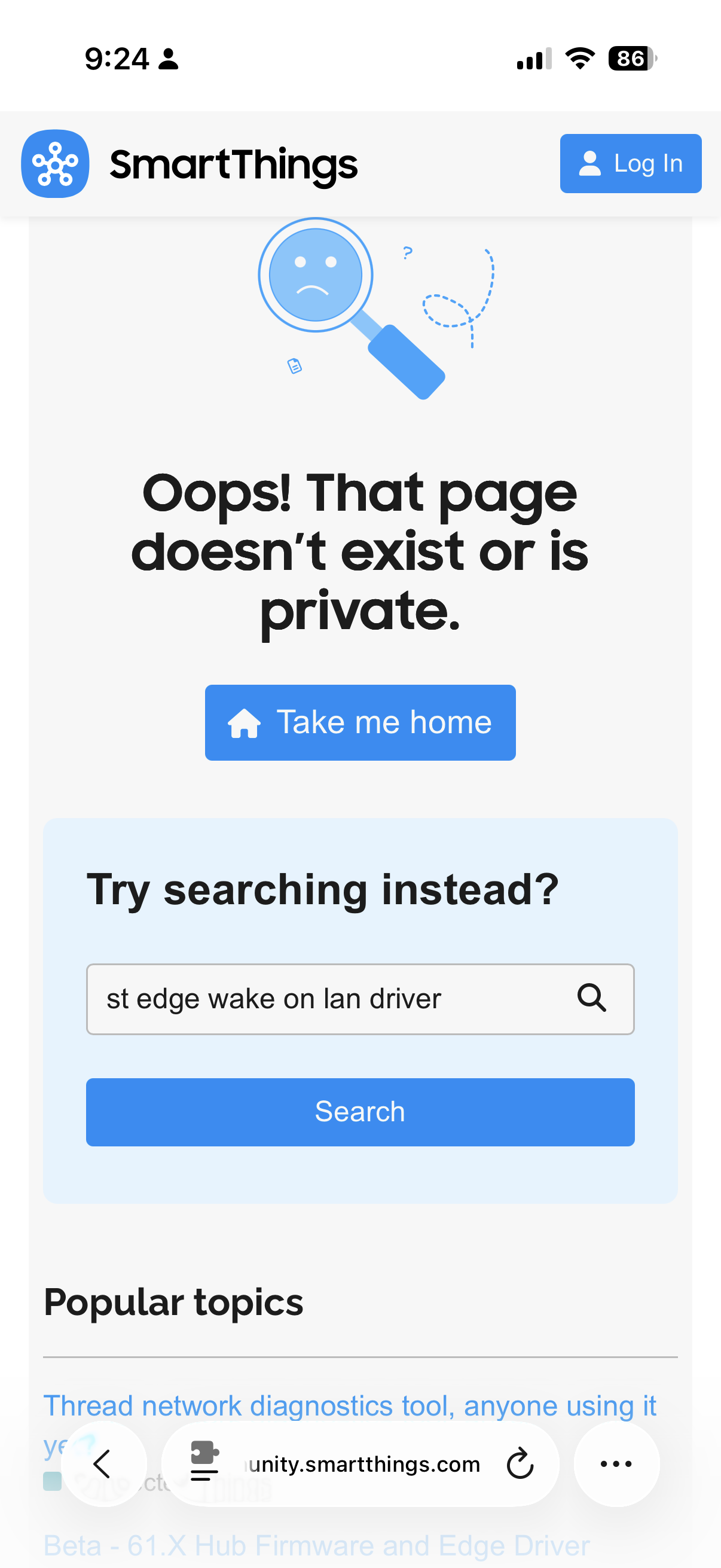
Second attempt: Community forum thread 404'd.
The fix: TAustin's real GitHub username is toddaustin07. His PC Control driver README contains the current working channel invite link. The channel is called "TAustin Driver Tests."
Current working channel invite:
https://bestow-regional.api.smartthings.com/invite/Q1jP7BqnNNlL
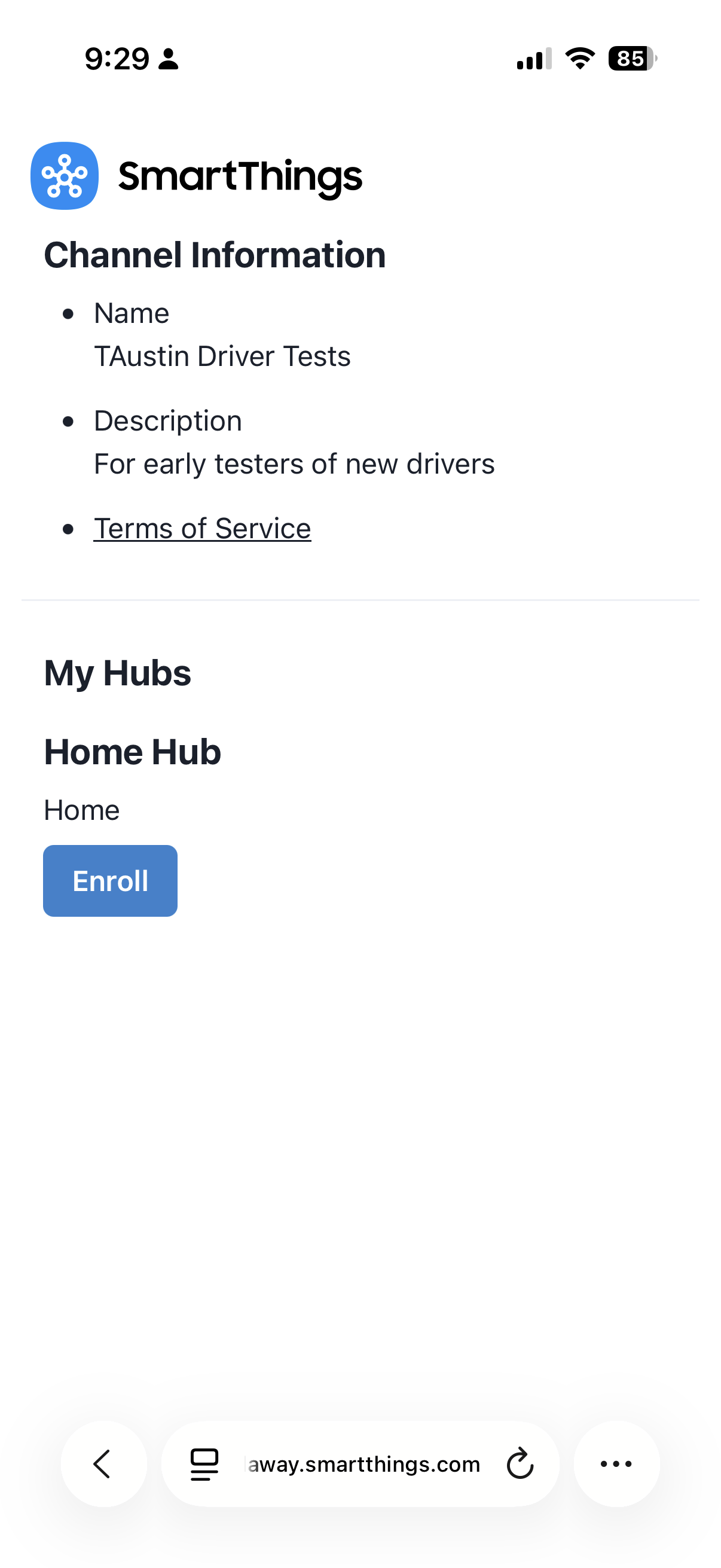
Open that link on your phone while logged into SmartThings. You'll see the channel info and an Enroll button for your hub.
Which driver to install
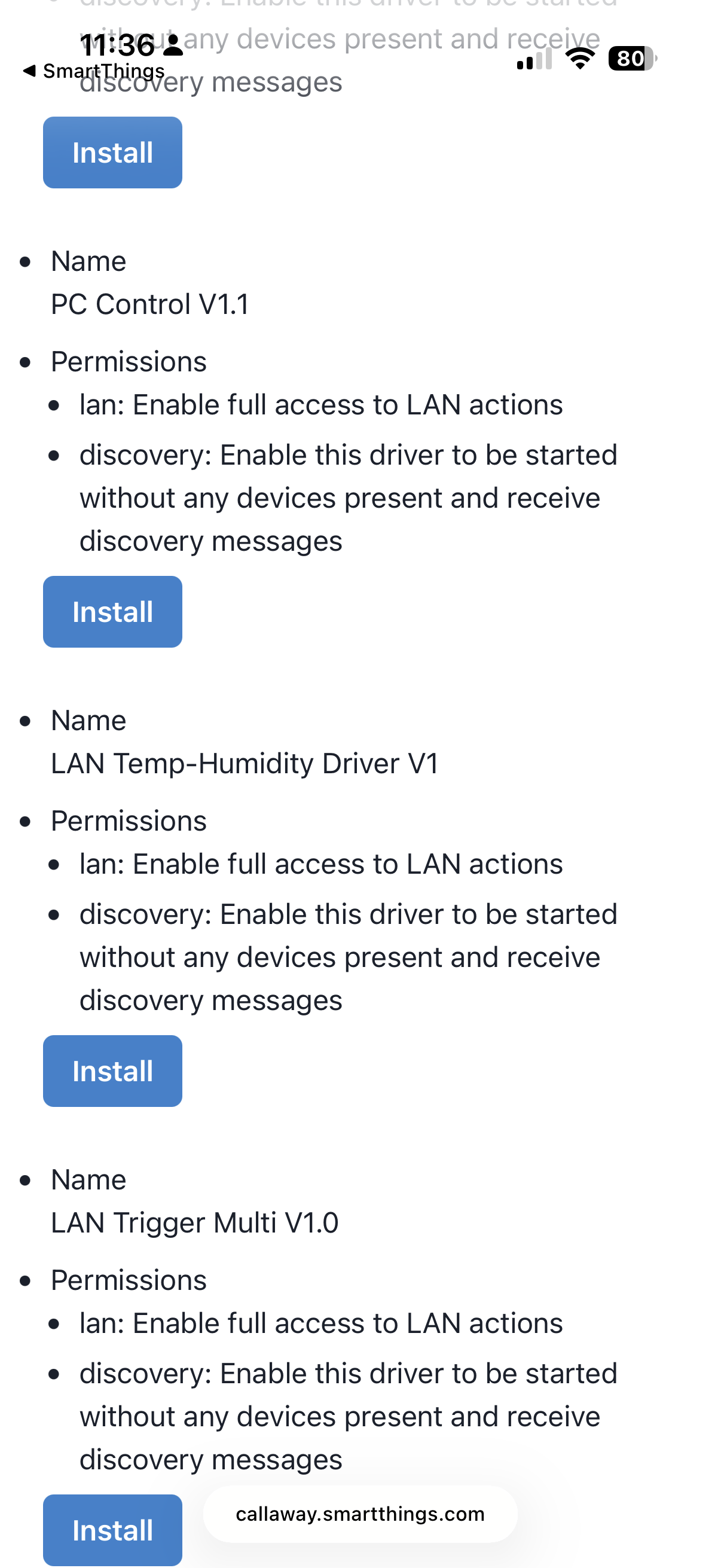
Once enrolled, the channel has two relevant drivers:
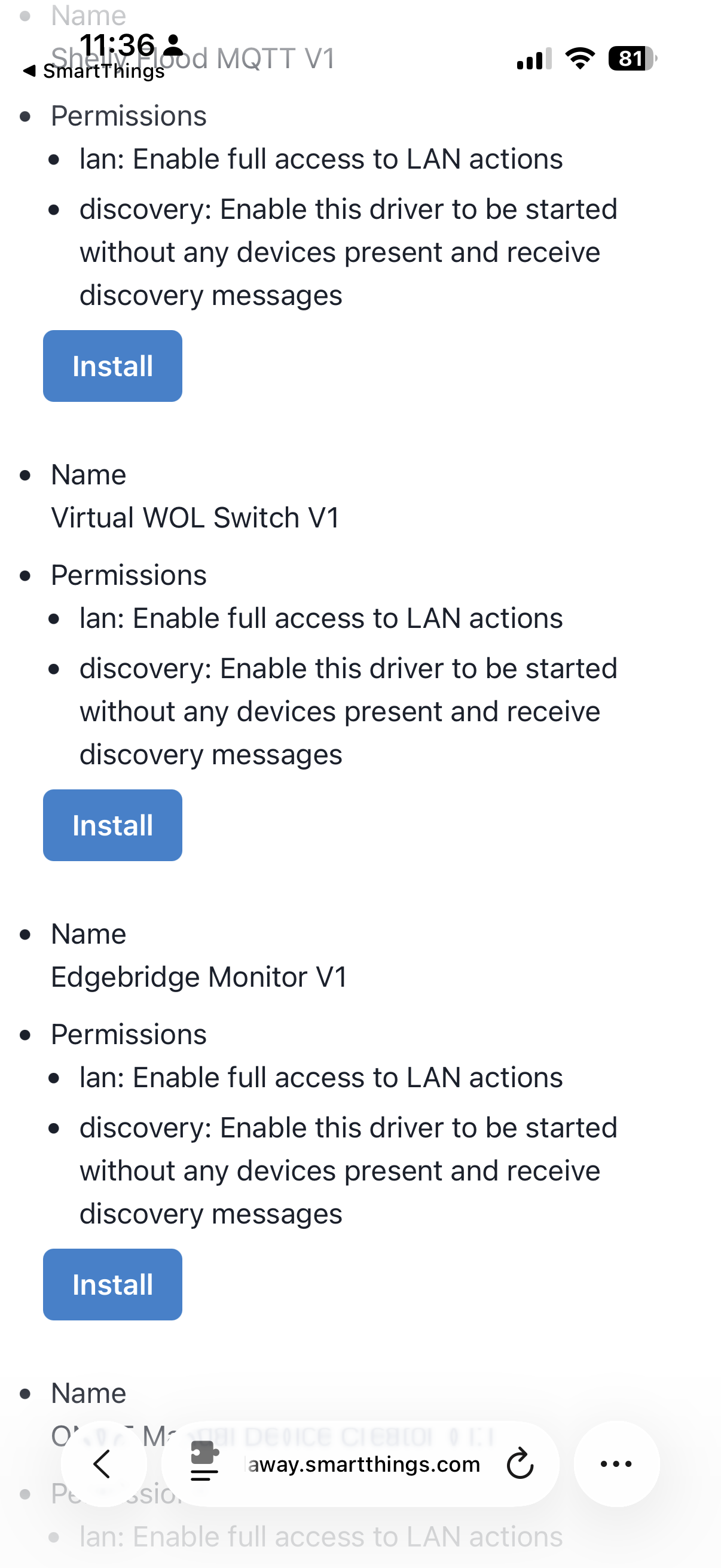
| Driver | What it does |
|---|---|
| PC Control V1.1 | WoL wake + HTTP shutdown commands. Shutdown requires a Windows agent on the target PC. |
| Virtual WOL Switch V1 | Pure WoL — just sends the magic packet. Works on any OS. |
Install Virtual WOL Switch V1. The PC Control driver is designed for Windows shutdown integration and adds unnecessary complexity for a Linux machine.
Create the device
In the SmartThings app: + → Add device → Scan for nearby devices
The hub creates a vWOL_1 1 device automatically.
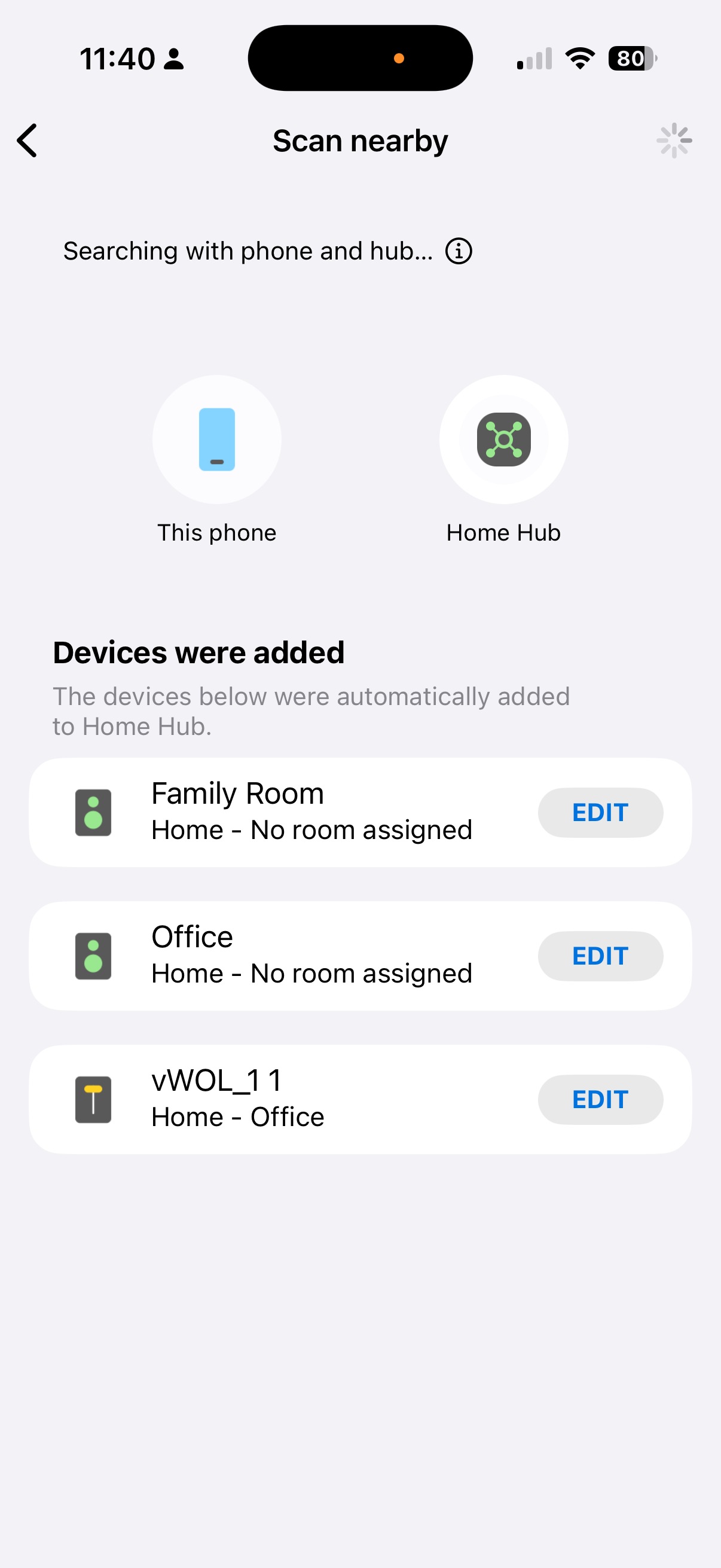
Open the device, tap ⋮ → Settings, and enter:
- MAC address: your machine's MAC (format:
xx:xx:xx:xx:xx:xx) - Broadcast address:
255.255.255.255:7(default, leave it)
The :7 is port 7 — one of the two standard WoL ports (the other is 9). Both work fine.
Test it
Shut down the homelab PC fully. Open the vWOL device in SmartThings and tap the power button. The PC should boot.
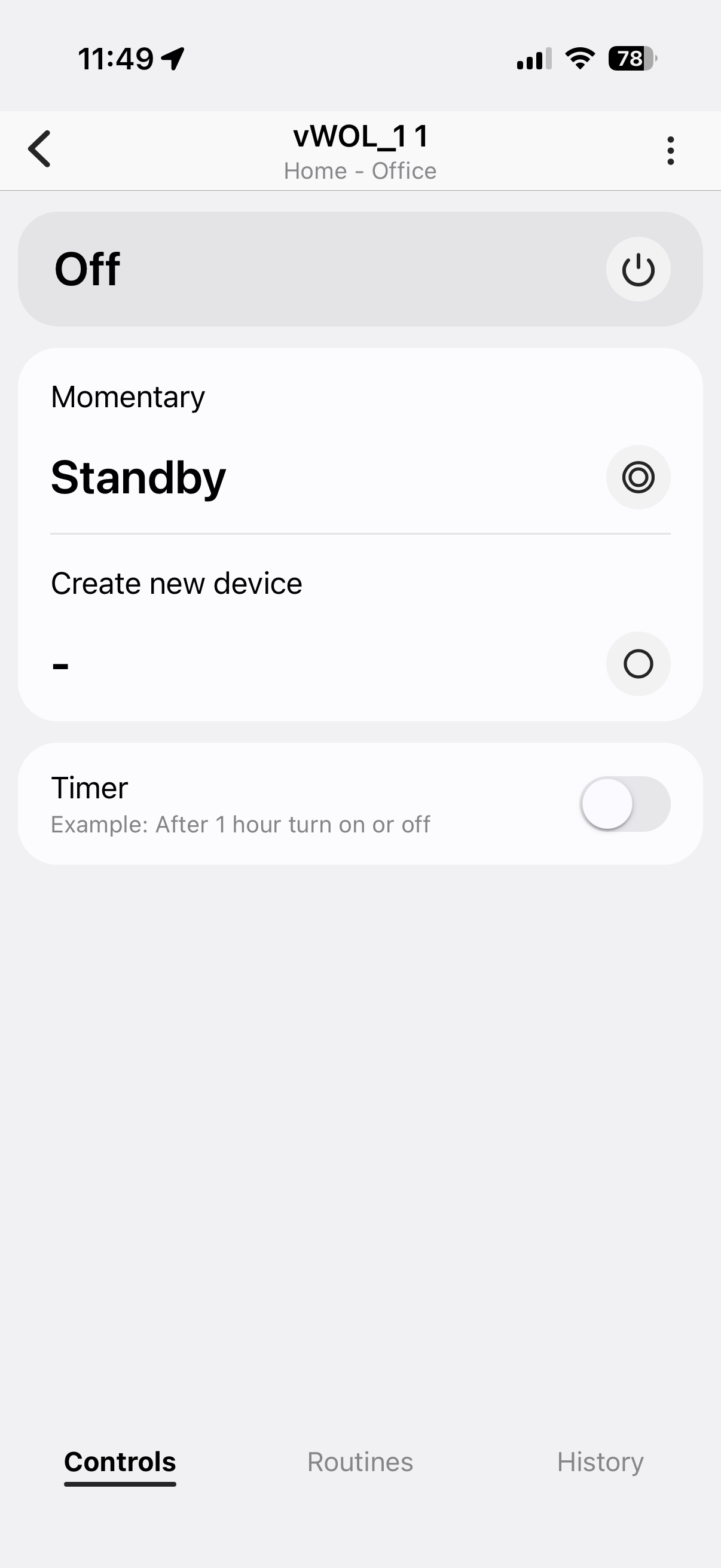
It worked — and because Coder starts automatically on boot, the workspace came back up on its own too.
Step 4: Connect SmartThings to Google Home
If SmartThings isn't already linked to Google Home:
- Open the Google Home app
- Tap + → Set up device → Works with Google
- Search for SmartThings
- Sign in with your Samsung account
Your vWOL_1 1 device will import. Rename it in Google Home to something natural — "Homelab" or "My PC" — so the voice command is clean:
"Hey Google, turn on Homelab"
The Full Chain
"Hey Google, turn on Homelab"
  → Google Home
    → SmartThings cloud
      → SmartThings Hub V2 (local, always on)
        → UDP broadcast magic packet on LAN
          → enp8s0 wakes on magic packet
            → Linux boots
              → Coder starts automatically
No subscriptions. No relay server. No Raspberry Pi. The SmartThings hub you already have is the relay — it never sleeps and it's always on your LAN.
Things That Tripped Me Up
eth0doesn't exist on modern Linux. Always check your actual interface name withip link showfirst.- TAustin's community forum thread is gone. The working channel link is in the README of his PCControl GitHub repo, not the forum.
- Channel invite links expire. If the link above is dead, check that README directly for the current one.
- BIOS ErP setting kills WoL. If your PC won't wake despite everything being configured correctly, this is the first thing to check.
- Home Assistant WoL requires an always-on relay. If HA itself is on the machine you're trying to wake, it obviously can't send the magic packet when it's off. The SmartThings hub solves this elegantly.
By the Numbers
- Time to enable WoL on Linux: ~10 minutes
- Time lost to expired SmartThings invite links: ~20 minutes
- Dead community forum threads encountered: 2
- Working channel links found via GitHub: 1
- Subscriptions required: 0
- New hardware purchased: 0
- Voice commands to wake the homelab: 1